
Backup, update, uninstall
Three operations that touch the whole installation rather than one stack. Each of them says what it is about to do before it does it.
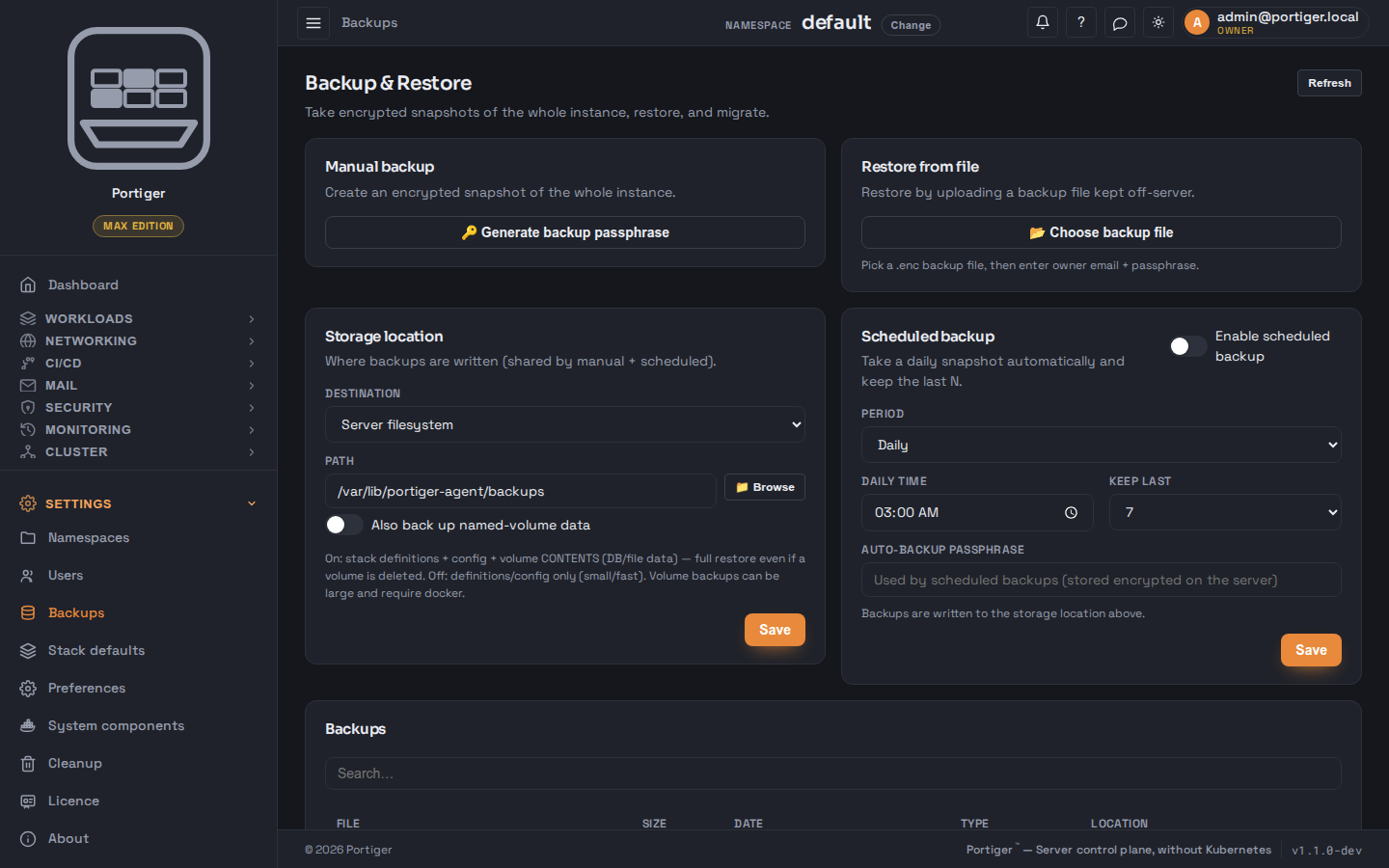
Backup
A backup is one encrypted snapshot of the whole installation: stacks and their Compose snapshots, settings, users, licence, notification rules and the encrypted secrets. A switch adds the contents of named volumes - the actual database and file data - which makes a full restore possible even if a volume has been deleted, and makes the file much larger.
Backups are written to one storage location, shared by manual and scheduled ones: a directory on this server, chosen with a browser that shows which directories are writable.
Scheduled backups
Daily, weekly or monthly, at a time you choose, keeping the last 3, 7, 14 or 30. The schedule has its own passphrase, stored encrypted on the server so the run can use it unattended. Scheduled backups are part of the Max plan; manual ones are on every plan.
Restore
Restore from a snapshot in the storage location, or by uploading a file kept off-server. It asks for the owner email and the passphrase, and then - before you can confirm - works out and shows the impact: which stacks exist now that did not exist when the snapshot was taken, and would therefore be stopped and permanently removed. If any would be lost the confirm button says how many, and a separate acknowledgement has to be ticked. When none would be lost it says that too: only settings and history roll back.
Update
portiger update
The update comes from the signed apt repository. Before anything is replaced the database is backed up automatically; migrations run when the new version starts. That automatic snapshot is separate from your own backups and is taken whether or not you have a schedule.
Uninstall
portiger uninstall
Removes the service and the packages, and asks what to do with the data directory rather than deciding for you. Take a backup first and copy it off the machine: a snapshot left in the data directory is no use if the directory goes with it.
Reclaiming disk instead
When the problem is disk rather than the installation, the answer is Cleanup under Settings, not an uninstall: it shows what the engine is holding and what of that is reclaimable, and prunes stopped containers, unused images, unattached networks, anonymous volumes or the build cache, per kind. A recurring sweep can run the safe ones on a schedule; that schedule is part of Team and above.