
Stacks
A stack is an application: one or more services, deployed together, kept in the state you asked for. There are four kinds and they are not four products - they differ only in where the definition comes from and therefore in what you are allowed to change from here.
docker run command.The list
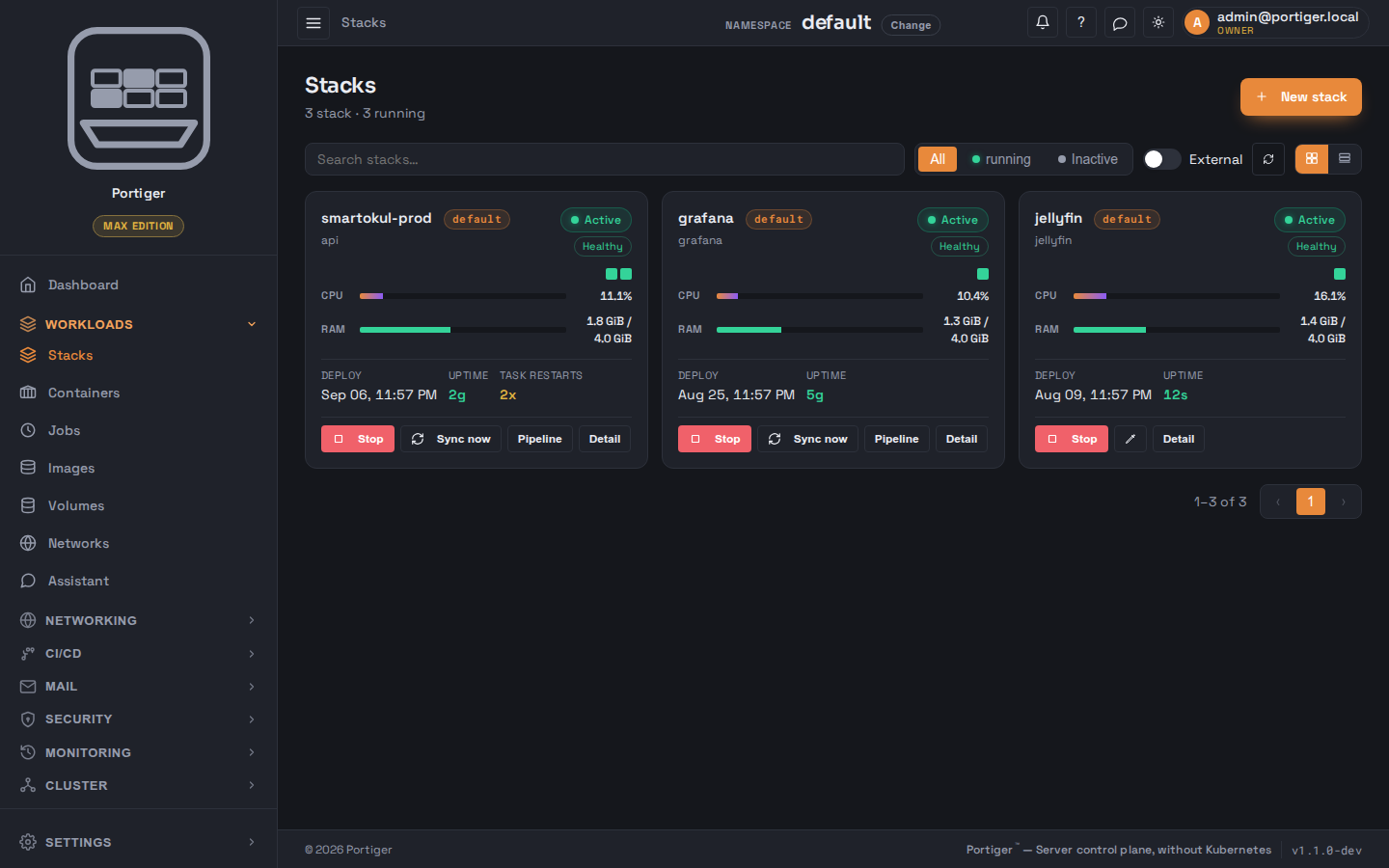
The list follows the namespace chosen in the top bar, and can be read as cards or as a table. A search box and the pills All, running and Inactive narrow it; a switch adds external projects, which are hidden by default.
A stack carries two things at its own level. Active or Inactive says whether it is meant to be running. Healthy, Progressing n of m ready or Unhealthy is computed from how many replicas are ready against how many were asked for - so a stack that is starting up says so rather than pretending to be up or pretending to be broken.
Below that is one square per container: green when running, amber while restarting or paused, red when it exited or died, and an outline where a replica should be and is not. Hovering a square names the container, its state and how many times it has restarted. Clicking one opens that container on the Containers page, where its logs and its console are.
Creating one
New stack offers four ways in:
- Manual - define the service, ports, volumes, networks and environment with a form.
- From VCS - create it from a connected Git repository.
- Paste Compose - paste a
docker-composefile. A file with several services becomes several stacks, one per service, and you name each. - Docker Run - paste a
docker runcommand and it is turned into a stack you can then edit.
The manual form has three tabs: the service itself, environment variables,
and Portiger's own settings. A preview pane on the right shows the
docker-compose.yml and portiger.yaml being
generated as you type, and can be edited directly. Published ports are only
for a service that is not reached through a domain; if it is, publish the
domain instead and it needs none.
Each environment variable chooses its source: a plain Value written into the stack as it is, a Global secret, or a Stack secret kept in the vault with only its name written into the stack. See Secrets.
From a Git repository
Pick the connected provider, then a repository, a branch and an online runner. Before you can continue, Portiger writes two values into the repository's CI secrets - the URL to reach it at and a notify token - so the runner can tell it when a build has finished.
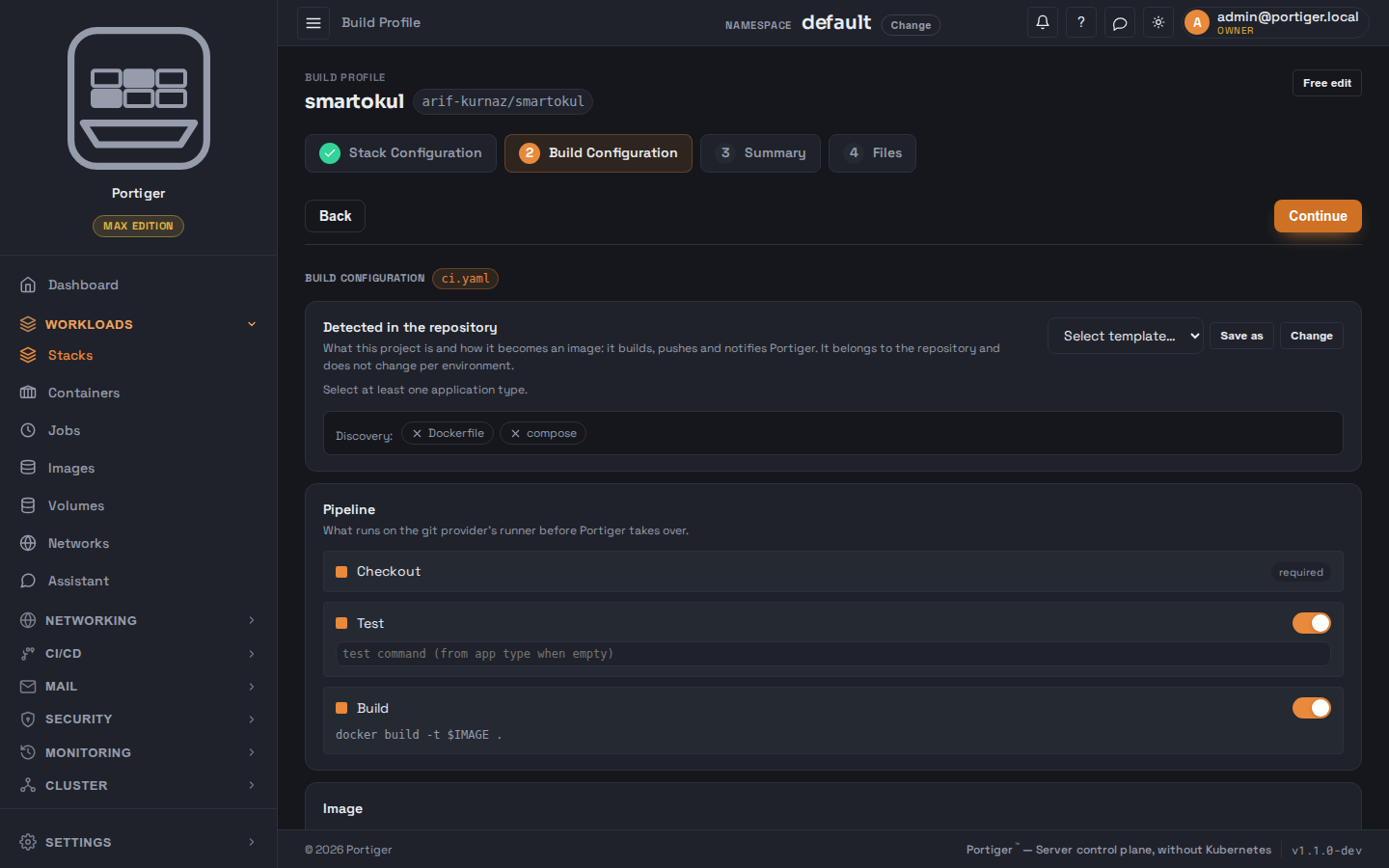
Then comes the build profile, in four steps: stack configuration, build configuration, a summary, and the files. The build step is where the pipeline is described - what is checked out, what is tested, what is built - along with the image architecture, the tag strategy and the registry. You do not write the CI file; Portiger generates it.
The summary lists every file that will be written, marked create, overwrite or reuse, and states plainly that secrets are not written to the repository - they stay encrypted here and are injected at deploy. Committing registers the stack and installs the webhook; nothing is running yet, because the first deploy comes from the pipeline.
The detail page
Every stack detail shows the same things: what it is, its services and their images, its replicas, when it last deployed, how many times its tasks have restarted, HTTP metrics over a chosen window, and live logs. What differs is the actions, and the set is fixed per kind.
| Kind | Actions | Not offered |
|---|---|---|
| Manual | Deploy, Stop / Start, Edit stack, Remove | Sync, pipeline |
| Git | Sync now; Deploy - or Approve and deploy when a version is waiting and auto-deploy is off; Stop / Start, Edit stack, Remove. A Latest run line carries the pipeline. | - |
| System | None. It is reported on here and acted on from System components. | Every write action |
| External | Bring into Portiger | Every other write action, until it is adopted |
A Manual or Git stack is a service in the workload pool, and Stop and Start mean what that implies: Stop scales the service to zero replicas - the definition, its volumes, its domain and its history all stay exactly where they are - and Start brings the replicas back.
Scale, replica count and node pinning are not on this page: they live together under Cluster > Placement, because they are one decision. Health and readiness probes are on the stack's Portiger tab; see Health and readiness.
Adopting something already running
A project running on this machine that Portiger did not deploy shows up as external. Bring into Portiger redeploys it as a service in the workload pool: its containers are replaced, its volumes and networks are kept, and it becomes a Manual stack with the full action set above. Until then nothing about it can be edited from here - it is watched, not managed. Portiger's own networks and its own proxy are never adoption candidates.