
Add a node
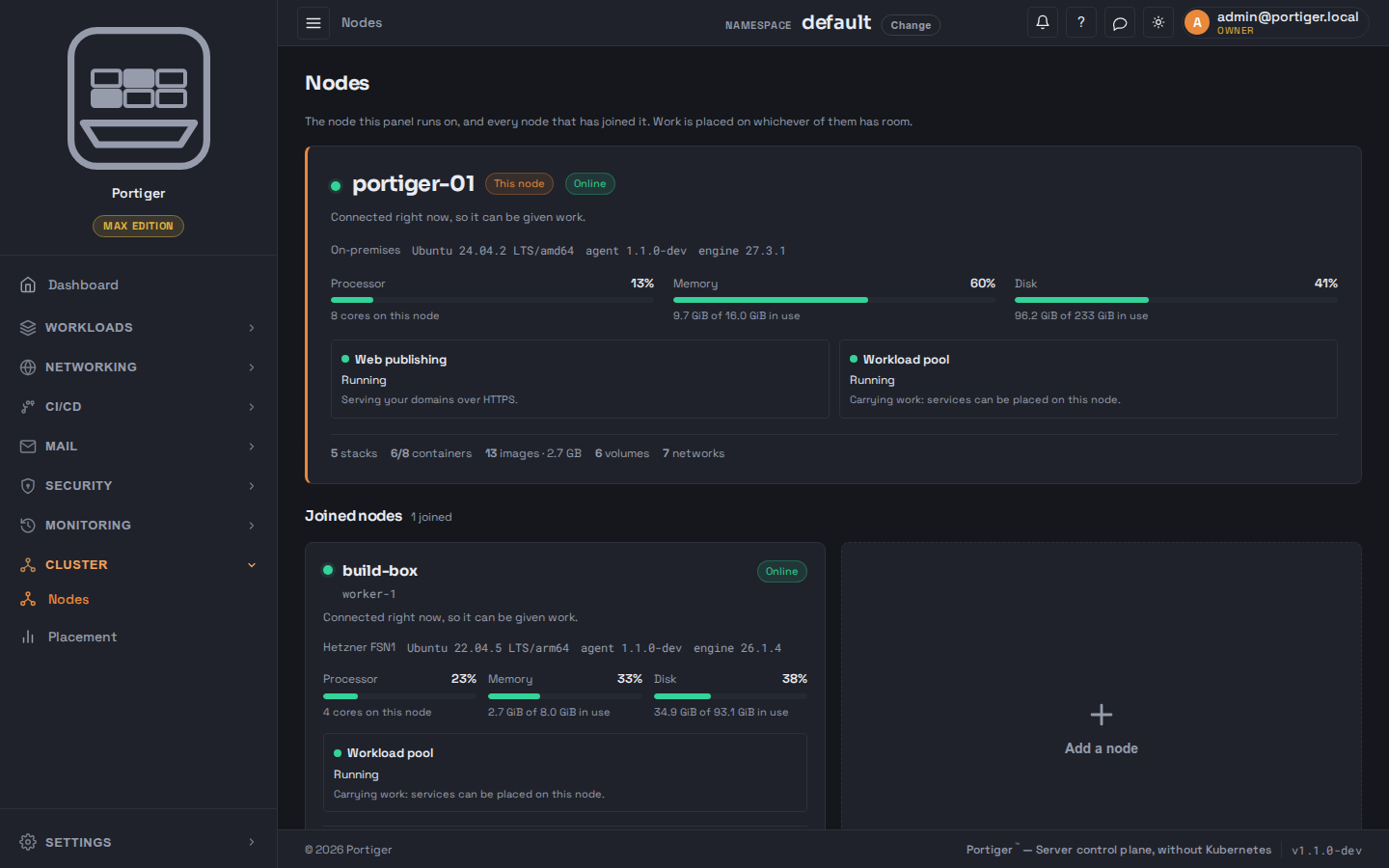
A node is a machine that has joined the workload pool. The machine Portiger is installed on is a node and is counted as one. Adding a node is done from the panel, over SSH: you give it an address it can reach once, and it installs Portiger there and joins it to the pool.
How many you get
Community, Personal and Team allow one node - the installed machine. Max allows three: the installed machine and two more. There is no add-on that raises it; see Plans.
Adding one
Press Add a node. The modal opens with a sentence about what is left, for example "Your plan allows 3 nodes and 1 place is free". If there are none free it says so and offers only Close - there is no form to fill in and no request to be refused.
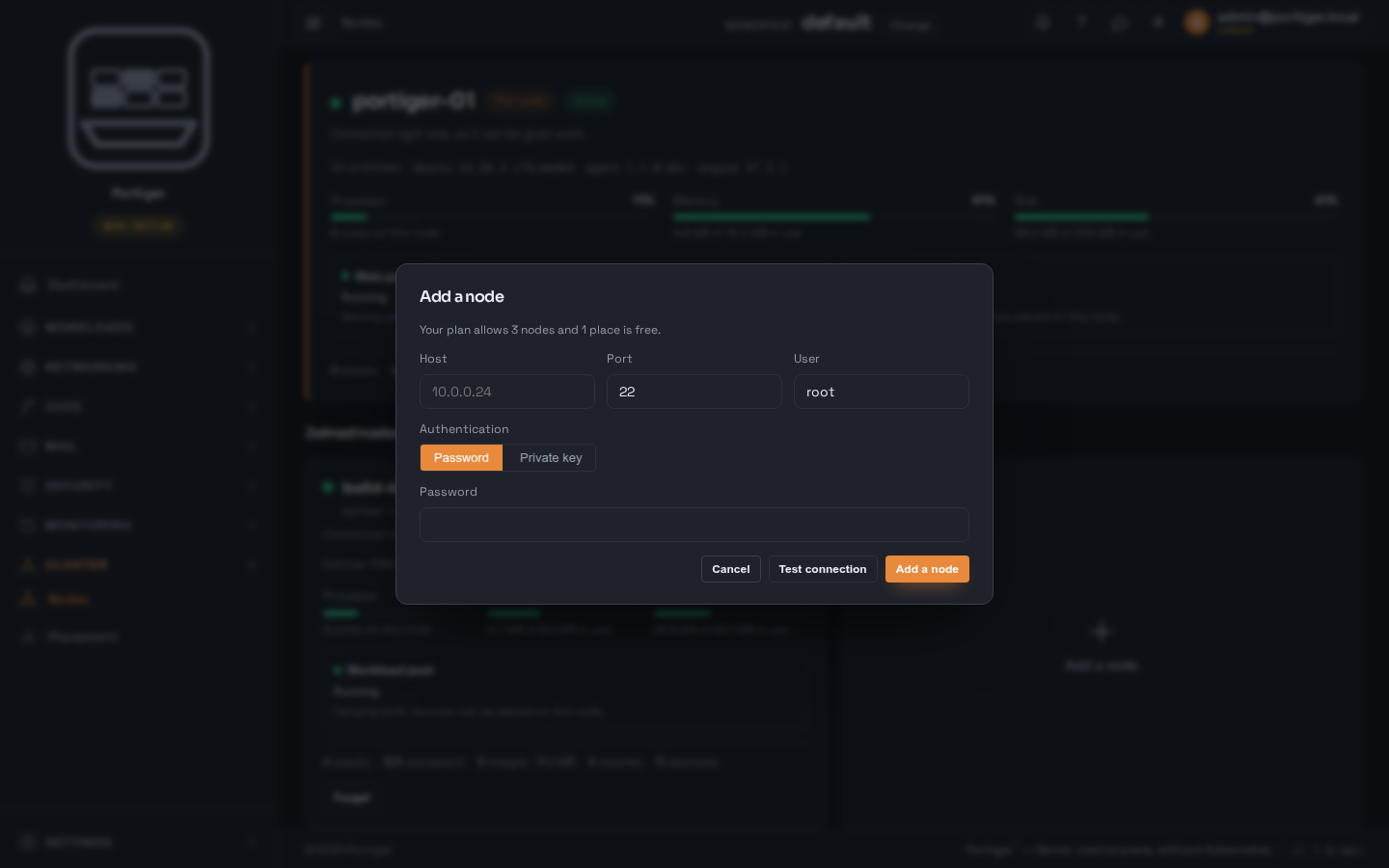
root by default.Test connection tries the credentials and answers in place: either "The machine answered" with the distribution and architecture it found, or the reason it was refused. A refusal is an answer, so it is shown next to the form rather than in a dialog.
What joining looks like
Add a node then runs five steps, each shown as it happens: connecting, checking the host, installing Portiger, joining the panel, and the first heartbeat. If one fails you can close, fix the cause and try again - the values you typed are still there.
Once joined, the node appears in Joined nodes with its own processor, memory and disk gauges, its workload pool tile, and counts of what it is carrying. A node that is not connected keeps running what it has; it is simply not given anything new.
Removing one
Forget removes a node from this panel. Nothing on the node is stopped or deleted - it stops being managed from here. The machine the panel runs on cannot be forgotten.
What placement does with them
With more than one node, work is placed on whichever has room. A stack can be pinned to a particular node under Cluster > Placement, which is also where its replica count and resource ceiling live. Pinning needs a second node in the pool; the page says so when there is only one.